Published 9 September 2026 · By the Magic Link developer
An Apple Magic Trackpad can be a useful addition to a Windows 11 desktop, but choosing the right software matters as much as choosing the hardware.
For a compatible rechargeable Trackpad, MagicTrackpad2ForWindows is a strong free starting point. If you want configurable three-finger dragging and custom click areas, Magic Utilities is worth evaluating. If you use several Apple input devices, Magic Link is another project to follow, with controls for Magic Trackpad, Magic Mouse, and Magic Keyboard in one Windows app.
Start with your Trackpad model
Identify whether you have the original AA-battery Trackpad, a rechargeable Lightning model, or a USB-C model. Do not assume a driver for rechargeable models also supports the original battery-powered device.
Check your PC’s architecture, too: AMD64 is for Intel/AMD x64 PCs; ARM64 is for Windows on ARM PCs. Compatibility depends on the device model, connection method, Windows version, and processor architecture.
Option 1: MagicTrackpad2ForWindows
This free community project offers Windows Precision Touchpad integration for compatible models. Its README documents Bluetooth and USB-C model support, battery readings, haptic adjustments, and Microsoft-signed drivers. Read the project documentation.
Installation is manual. The documented process is to remove conflicting Trackpad drivers, download and extract the release package, select AMD64 or ARM64, then right-click the appropriate INF file and choose Install. Follow the current README when switching from another driver. Installation instructions.
This is a sensible starting point if you mainly need a Trackpad and are comfortable managing a driver package.
Option 2: Magic Utilities
Magic Utilities is a commercial alternative. Its documented features include three-finger dragging, middle-click, configurable click areas, and scroll and swipe sensitivity adjustments. The vendor also lists USB-C Trackpad support. View the Trackpad features.
The useful question is whether you need those particular behaviors. Someone who frequently drags objects or uses middle-click may value different controls from someone who mostly scrolls through documents.
Evaluate the trial against your own applications before purchasing. Official downloads.
Option 3: Magic Link
I am building Magic Link around a broader setup: using Magic Trackpad, Magic Mouse, and Magic Keyboard from one Windows application.
Controls for all three device families are complete. Trackpad functionality includes tracking, clicking, scrolling, zooming, and multi-finger gesture settings. Mouse and Keyboard controls are also implemented.
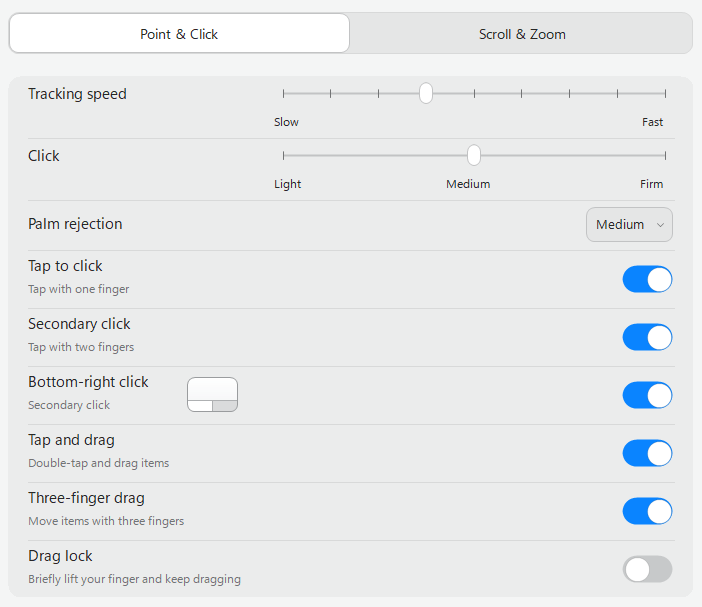
Feature completion and public availability are separate milestones. At the time of writing, the public signed installer is still being prepared. Magic Link currently targets Windows 10 and Windows 11 on x64 PCs; check exact model compatibility against the release documentation when available.
If you need an installable solution today, evaluate the existing downloads above. If managing several Magic devices together appeals to you, explore Magic Link’s Trackpad controls and follow its official releases.
Test the actions you actually use
Whichever option you choose, spend a few minutes testing your daily workflow:
- Scroll vertically and horizontally in your browser and editor.
- Select text and drag files.
- Try zoom and the gestures you rely on.
- Check reconnection after sleep.
- Test Bluetooth separately if you also use a cable.
A successful installation is only the first step. The right solution should behave predictably in the applications where you spend your time.
For most people, the decision comes down to three priorities: a free Trackpad driver, specific commercial gesture controls, or a unified application for multiple Apple devices. Start with your hardware and required actions, then choose the software that matches them.